
SSO ID Udyog Registration 2026: Create a Business SSO ID in Rajasthan
Businesses and industries in Rajasthan use the same SSO portal as citizens. Registration starts under the “Citizen/ Udhyog” tab, and the SSO ID then opens industry and MSME apps.
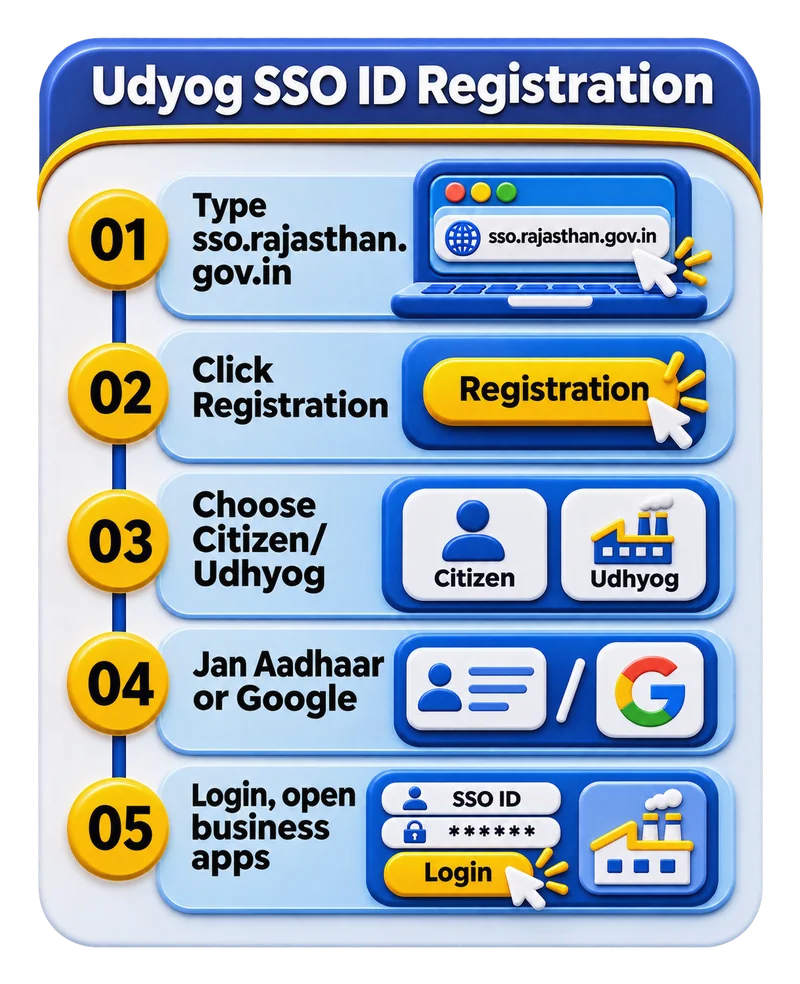
For SSO ID Udyog registration, open sso.rajasthan.gov.in, click Registration, choose the “Citizen/ Udhyog” tab and register with Jan Aadhaar (Rajasthan residents) or Google (all others). Registration itself takes a few minutes; after that you log in and open the industry or MSME app you need.
Dear users, this page explains who should use a Udyog (business) SSO ID, which details a business usually keeps ready, the registration steps checked on 4 November 2026, how to recover a Udyog SSOID, common problems and the industry helpdesks listed on the SSO portal. We are an independent guide, not the government portal. Always type the official address yourself and never share your password or OTP.
Steps checked on the official portal on 4 November 2026. Independent guide — not the Government of Rajasthan.
What Is a Udyog SSO ID?
A Udyog SSO ID is simply an SSO ID used by a business, shop, firm or industry to access Rajasthan government services meant for businesses. “Udyog” (written “Udhyog” on the portal) means industry.
The SSO portal groups users into two registration tabs: “Citizen/ Udhyog” and “Govt. Employee”. Citizens and businesses share the first tab. The portal’s own counter on 4 November 2026 showed 272 G2C/G2B apps, where G2B means government-to-business services, so many business services are reachable through one login.
The “Forgot SSOID” page also treats Udhyog as a separate type. When you recover a lost ID, you choose Citizen, Udhyog or Govt. Employee. That is why it matters which identity you use for your business work from the start.
Searches like “udyog sso id”, “business sso id rajasthan” and “industry sso login” all point to the same thing: an SSO ID created under the Citizen/ Udhyog tab and used for business apps.
Who Should Choose Udyog
Choose the Udyog route when the SSO ID will be used for a business rather than for your personal citizen services.
Small Business Owners
Shops, traders and service businesses that apply for state licences, registrations or business schemes.
MSME Units and Industries
Micro, small and medium enterprises and larger units that use industry department apps, including RAJUDYOGMITRA and MSME services listed on the SSO helpdesk.
Firms, Companies and Partnerships
Organisations where an authorised person manages government applications on behalf of the business.
Not for Government Employees
Government employees use the separate “Govt. Employee” tab for official work. See our SSO ID employee login guide.
Details a Business Usually Keeps Ready
- Authorised person’s identity: The Jan Aadhaar details (for Rajasthan residents) or a Google account of the person who will manage the SSO ID.
- Business mobile and email: A mobile number and email that the business controls long term, not a staff member’s personal number that may change.
- Business registration details: Business apps may ask for registration numbers such as a BRN (Business Registration Number) or other registration details issued for your unit. Keep whichever your business holds.
- Business name and address: Exactly as printed on your registration documents, so all records match.
- Tax and bank details: Apps for schemes or payments may ask for PAN, GST or bank details of the business, depending on the service.
- Scanned documents: Clear scans of registration certificates and other papers the app asks for.
Use one consistent business name spelling everywhere. Mismatches between your registration documents and the details you type are a common cause of rejected applications.
SSO ID Udyog Registration Step by Step
These steps were checked on the SSO portal on 4 November 2026. Business apps opened after login are managed by their departments and may look different.
Step 1: Open the Official SSO Portal
Type sso.rajasthan.gov.in yourself in your browser. You will see “Rajasthan Single Sign On” with an English and हिन्दी toggle at the top.
Step 2: Click Registration
On the sign-in page, open Registration. You will see two tabs: “Citizen/ Udhyog” and “Govt. Employee”.
Step 3: Choose the “Citizen/ Udhyog” Tab
Businesses use this tab. Do not pick “Govt. Employee”, which is only for state employees.
Step 4: Pick Jan Aadhaar or Google
Choose “Jan Aadhaar” if the authorised person is a resident of Rajasthan, or “Google” (for all others, including Rajasthan residents). Follow the on-screen verification for the option you choose.
Step 5: Set Your SSOID and Password
Complete the remaining fields, choose a username if offered, and set a strong password as per the portal’s password policy. Note your SSOID somewhere safe for the business.
Step 6: Log In and Open Business Apps
Log in with “Digital Identity (SSOID/ Username)”, “Password” and the captcha. On the dashboard, open the industry, MSME or other business app you need and complete its own profile or registration. Our SSO ID registration guide explains the shared fields in more detail.
Recovering a Lost Udyog SSOID
- Step 1: Open sso.rajasthan.gov.in/forgotsd, or click “I Forgot my Digital Identity (SSOID). Click Here” on the login page.
- Step 2: Choose the type used earlier. For a business ID, choose Udhyog.
- Step 3: Choose the method used at registration: Jan Aadhaar, Aadhaar or Google.
- Step 4: Complete the verification shown on screen to see your SSOID.
- Step 5: Alternatively, from the registered mobile, send “RJ SSO” to 9223166166. This works only if the ID was used to log in at least once on or after 07/09/2018.
If the business has lost its SSOID, the Forgot SSOID page handles it:
For the password, use “I Forgot my Password. Click Here” or send “RJ SSO PASSWORD” to 9223166166 from the registered mobile. Full steps are on our forgot SSO ID and password reset pages.
Common Udyog SSO ID Problems and Fixes
Most business SSO problems come from mixing personal and business IDs, or from a mobile number that has changed.
I registered my business on my personal citizen SSO ID.
Many owners do this. If you want separate IDs, see our merge SSO ID guide to understand your options, and contact your district RajSSO helpdesk before changing anything that is linked to live applications.
The staff member who created our SSO ID has left.
The password reset needs the registered mobile. If you no longer have it, contact your district RajSSO helpdesk with proof that you are authorised for the business.
Forgot SSOID does not find my business ID.
Make sure you chose Udhyog as the type and the same method (Jan Aadhaar, Aadhaar or Google) used at registration. Also check the 07/09/2018 login condition.
The business app asks for a registration number I do not have.
Each business app sets its own requirements. Contact the helpdesk listed for that app on the SSO helpdesk page and ask which registration is required.
My registered mobile number has changed.
Update the mobile number on the SSO ID before you need a reset. See our SSO ID mobile number change guide.
RAJUDYOGMITRA and MSME Helpdesk
These contacts are listed on the official SSO helpdesk page (checked 4 November 2026). The SSO helpdesk works on working days from 10 AM to 6 PM.
The helpdesk list also includes a “RAJASTHAN MSME-2024” app entry without a separate phone or email. For SSO account problems (not business app problems), contact your district RajSSO helpdesk on our SSO ID helpline number page.
| App | Phone | |
|---|---|---|
| RAJUDYOGMITRA (MSME) | 0141-2227274, 2227812, 2227713 | [email protected] |
| Micro, Small and Medium Enterprises (MSME) | Not listed | [email protected] |
When you contact a helpdesk, share the SSOID, the business name, the app name and a screenshot of the error. Never share your password or OTP.
हिंदी में जानकारी
उद्योग (बिज़नेस) SSO ID बनाने के लिए sso.rajasthan.gov.in खोलें, Registration पर क्लिक करें और “Citizen/ Udhyog” टैब चुनें। राजस्थान के निवासी “Jan Aadhaar” से और अन्य लोग “Google” से पंजीकरण कर सकते हैं। लॉगिन के बाद डैशबोर्ड पर उद्योग या MSME ऐप खोलें, जहाँ व्यवसाय के पंजीकरण से जुड़ी जानकारी माँगी जा सकती है। SSOID भूलने पर Forgot SSOID पेज पर प्रकार “Udhyog” चुनें, या पंजीकृत मोबाइल से “RJ SSO” लिखकर 9223166166 पर भेजें। RAJUDYOGMITRA (MSME) हेल्पडेस्क: 0141-2227274, 2227812, 2227713 और ईमेल [email protected]।
FAQs
Conclusion
SSO ID Udyog registration is quick: sso.rajasthan.gov.in, Registration, “Citizen/ Udhyog”, then Jan Aadhaar or Google. Use a business mobile and email, keep your business registration details consistent, and open the industry or MSME app you need after login.
For RAJUDYOGMITRA help, call 0141-2227274, 2227812 or 2227713, or email [email protected]. For general SSO trouble, see our SSO ID problems page. Always type the official address yourself and keep your password and OTP private.