eMitra Login 2026: Use Raj e-Mitra Through Your SSO ID
e-Mitra is Rajasthan’s citizen service platform, available online and at e-Mitra kiosks across the state. Citizens and kiosk operators both sign in through the SSO portal.
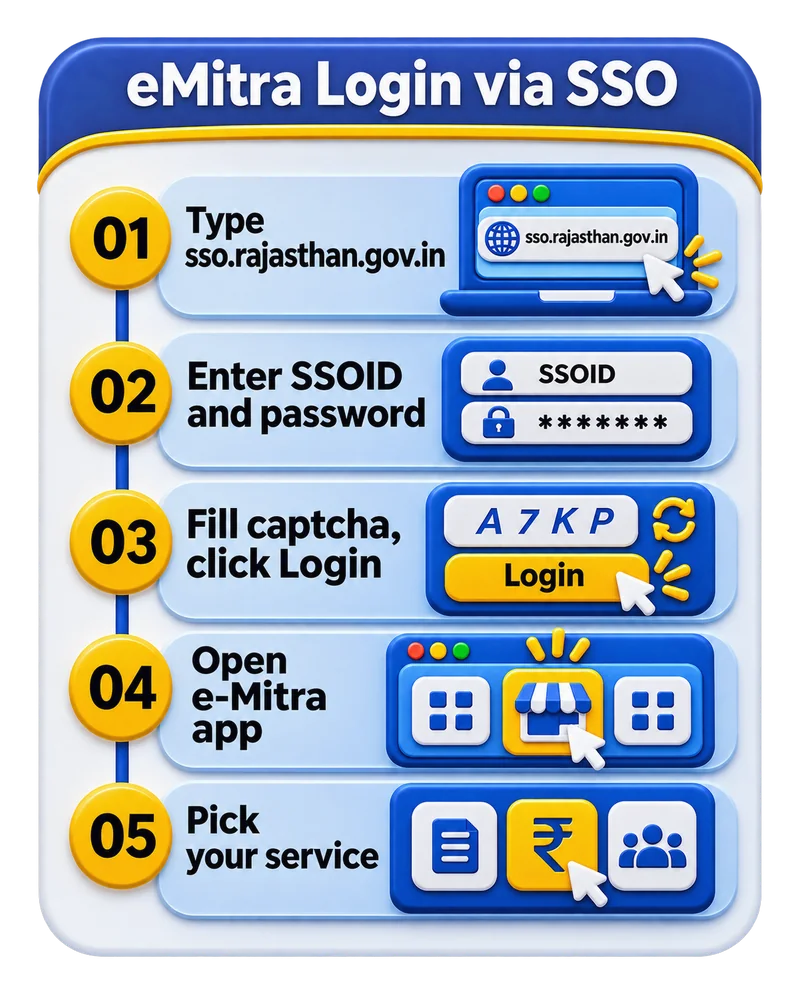
For eMitra login, open sso.rajasthan.gov.in, sign in with your SSOID, password and captcha, and click the e-Mitra app on your dashboard. If you do not want to apply online, you can visit any authorised e-Mitra kiosk and the operator will do it for you.
Dear users, this page explains what e-Mitra is, how a citizen logs in, how kiosk operators sign in, which kinds of services are usually available, common errors and the official e-Mitra helpdesk. We are an independent guide, not the government portal. Always type the official address yourself and never share your password or OTP.
Steps checked on the official portal on 4 November 2026. Independent guide — not the Government of Rajasthan.
What Is e-Mitra (Raj e-Mitra)?
e-Mitra is the Government of Rajasthan’s citizen service platform. It brings many department services to one place, both online and through a network of e-Mitra kiosks run by local operators.
People often search for it as “emitra”, “raj emitra” or “e mitra Rajasthan”. All of these mean the same platform. It is one of the apps inside the Rajasthan Single Sign On system, which on 4 November 2026 listed 272 G2C/G2B (citizen and business) apps and more than 3.4 crore registered identities.
The SSO helpdesk page lists several e-Mitra related apps: e-Mitra, e-MItra MIS, EmitraPlus Application and e-Mitra Reports. They are supported by the same e-Mitra helpdesk team, which you will find later on this page.
Two Ways to Use e-Mitra
You can use e-Mitra yourself online, or let a kiosk operator handle it. Choose the one that suits you.
Online (Citizen Login)
You log in with your own SSO ID and use the e-Mitra app from your phone or computer. This saves a trip and lets you track your own requests.
e-Mitra Kiosk
An authorised kiosk operator uses their own operator login to submit your request, take payment and give you a receipt. This helps if you are not comfortable with online forms.
Who Should Go Online
Anyone with a working SSO ID, a registered mobile number and a way to pay online can manage simple services themselves.
Who Should Visit a Kiosk
People who need help with documents, scanning, biometric steps or cash payments usually find the kiosk easier.
Services Usually Available on e-Mitra
- Bill payments: Utility bills such as electricity and water, where the department is connected to e-Mitra.
- Certificate applications: Applying for certificates issued by state departments, such as those needed for jobs, admissions or schemes.
- Government forms and fees: Paying application or exam fees and submitting forms for state services.
- Scheme related services: Applications and updates linked to state welfare schemes, often using Jan Aadhaar details.
- Printing and copies: Getting printouts of documents you are entitled to download.
- Status checks: Tracking the status of a request you submitted earlier.
Before you pay at a kiosk, ask the operator what the service charge is, and take a printed receipt for every payment. If you feel you were overcharged, you can report it to the e-Mitra helpdesk listed below.
e-Mitra Citizen Login Through SSO Step by Step
These steps cover the citizen side of e-Mitra login. Steps checked on 4 November 2026 on the SSO portal. Screens inside e-Mitra may change.
Step 1: Open the Official SSO Portal
Type sso.rajasthan.gov.in yourself in your browser. You will see “Rajasthan Single Sign On” and an English and हिन्दी language toggle at the top.
Step 2: Create an SSO ID if You Do Not Have One
Click Registration and choose the “Citizen/ Udhyog” tab. Rajasthan residents can register with “Jan Aadhaar”; others can use “Google”. Our SSO ID registration guide explains every field.
Step 3: Enter Your SSOID and Password
On the Login page, fill “Digital Identity (SSOID/ Username)” and “Password”. You can use your SSOID or your username, whichever you set up.
Step 4: Fill the Captcha and Click Login
Type the characters in “Enter Captcha”. Use the refresh or audio icon if the image is hard to read. Then click “Login”.
Step 5: Open the e-Mitra App
On your SSO dashboard, find the e-Mitra tile among your citizen apps and click it. e-Mitra opens using your SSO session, so you do not need another password.
Step 6: Choose the Service and Pay
Select the service you want, fill the details carefully, upload any documents asked for and complete the payment. Save or print the receipt and note the transaction or application number for tracking.
e-Mitra Kiosk Operator (KO) Login
e-Mitra kiosk operators also sign in through the SSO portal, but with an operator account that has kiosk rights.
A kiosk operator ID is not the same as a normal citizen ID. Operator access is given after the kiosk is authorised under the e-Mitra programme, and the operator then sees kiosk-specific apps and reports on their SSO dashboard. The SSO helpdesk list includes apps such as e-MItra MIS, EmitraPlus Application and e-Mitra Reports, which are part of this operator and reporting side.
We do not explain how to become a kiosk operator here, because the rules, fees and documents are decided by the department and can change. If you want to open a kiosk, contact the e-Mitra helpdesk or your district office. If you are already an operator and cannot see your kiosk apps after login, check that you are using your kiosk SSOID and not a personal one.
Common eMitra Login Problems and Fixes
Most e-Mitra login problems are SSO problems. Fix the SSO side first, then try e-Mitra again.
I forgot my SSOID.
Click “I Forgot my Digital Identity (SSOID). Click Here” on the login page, or send “RJ SSO” to 9223166166 from your registered mobile. See the forgot SSO ID guide.
I forgot my password.
Use “I Forgot my Password. Click Here” and reset by mobile or personal email, or send “RJ SSO PASSWORD” to 9223166166. Full steps are on our password reset page.
The SMS reply says my ID is not found.
SMS and forgot options work only if you have logged in at least once on or after 07/09/2018. Otherwise, contact your district RajSSO helpdesk.
The e-Mitra app is not on my dashboard.
Citizen apps are usually listed on the dashboard after login. If you cannot find it, log out, clear your browser cache and try again. Kiosk operators should confirm they are on their operator SSOID.
My payment was deducted but the service shows pending.
Do not pay a second time. Keep your transaction number and wait a little for the status to update. If it does not, contact the e-Mitra helpdesk with the transaction details.
My mobile number has changed.
Password resets need your registered mobile. Get your mobile number updated before you try to reset.
e-Mitra Helpdesk Number and Email
These contacts are listed on the official SSO helpdesk page (checked 4 November 2026). The SSO helpdesk works on working days from 10 AM to 6 PM.
| App | Phone | |
|---|---|---|
| e-Mitra | +91141-2922238, +91141-2922241 | [email protected] |
| e-MItra MIS | +91141-2922238, +91141-2922241 | [email protected] |
| EmitraPlus Application | +91141-2922238, +91141-2922241 | [email protected] |
| e-Mitra Reports | +91141-2922238, +91141-2922241 | [email protected] |
When you contact the helpdesk, share your SSOID, the service name, the transaction or application number and a screenshot. Never share your password or OTP. For SSO account issues, see our SSO ID helpline number page.
हिंदी में जानकारी
ई-मित्र (e-Mitra) राजस्थान सरकार का नागरिक सेवा प्लेटफॉर्म है, जहाँ बिल भुगतान, प्रमाण पत्र के आवेदन और कई सरकारी सेवाएँ मिलती हैं। ऑनलाइन उपयोग के लिए sso.rajasthan.gov.in खोलें, SSOID, पासवर्ड और कैप्चा भरकर Login करें और डैशबोर्ड पर e-Mitra ऐप पर क्लिक करें। अगर आप ऑनलाइन आवेदन नहीं करना चाहते, तो नज़दीकी अधिकृत ई-मित्र कियोस्क पर जा सकते हैं। हर भुगतान की रसीद ज़रूर लें। ई-मित्र हेल्पडेस्क: +91141-2922238, +91141-2922241 और ईमेल [email protected]।
FAQs
Conclusion
eMitra login is quick once your SSO ID works: sso.rajasthan.gov.in, SSOID and password, captcha, Login, then the e-Mitra app. If you prefer help, an authorised e-Mitra kiosk can do the same work for you, with a receipt.
For e-Mitra issues, call +91141-2922238 or +91141-2922241, or email [email protected]. For general SSO problems, see our SSO ID problems page. Always type the official address yourself and keep your password and OTP private.