
Paymanager Login 2026: Rajasthan Pay Manager and Salary Slip Guide
Pay Manager is the Rajasthan finance department’s system for salary and bill processing. Most employees reach their pay details by signing in to the SSO portal and opening the finance or employee apps assigned to their ID.
For paymanager login, Rajasthan government employees usually sign in at sso.rajasthan.gov.in with their employee SSOID, password and captcha, then open the employee or finance app shown on their dashboard to see salary details and the pay slip. Drawing and Disbursing Officers (DDOs) and office billing staff use Pay Manager to prepare salary bills, while most employees only need it to view or download their salary slip.
Dear users, this guide explains what Pay Manager is in simple words, how employees normally reach their salary slip, the problems people face most often and which official helpdesk to contact. We are an independent guide, not the government portal. Always type the official address yourself and never share your password or OTP with anyone.
Steps checked on the official portal on 4 November 2026. Independent guide — not the Government of Rajasthan.
What Is Paymanager Rajasthan?
Pay Manager (often typed “paymanager”) is the system the Finance Department of Rajasthan uses for salary and bill processing for state government employees. It is a work tool for offices, not a citizen service.
In everyday terms, the office that pays you prepares your monthly salary bill online, the bill moves through the treasury process, and the payment is made to your bank account. Pay Manager is the part of this chain that people most often link with salary bills and pay slips. DDOs and accounts staff in each office use it to enter and process bills, and employees use it to check what was paid.
Pay Manager is closely connected with the state’s wider financial system, IFMS (Integrated Financial Management System). If you want to understand that bigger picture, read our IFMS Rajasthan guide. When we opened paymanager.rajasthan.gov.in on 4 November 2026, it sent us straight to the Rajasthan SSO sign-in page (sso.rajasthan.gov.in/signin) — so you reach Pay Manager by logging in with your SSO ID first. We keep the description of the screens inside Pay Manager general and do not list internal menu names.
Who Uses Pay Manager?
Different people use Pay Manager for different jobs. Here is a quick picture of who opens it and why.
Drawing and Disbursing Officers (DDOs)
The DDO of an office is responsible for drawing the salary of the staff and approving the bills. They use the system to prepare, check and forward salary and other bills.
Office Billing and Accounts Staff
Clerks and accountants who handle the salary work in an office usually do the data entry, such as changes in pay, deductions and new joinings, under the DDO’s control.
State Government Employees
Most employees only want to see their salary details, deductions and monthly pay slip. They normally reach this after signing in through SSO.
Newly Appointed Employees
New joiners usually need a Govt. Employee SSO ID and their employee record set up by the office before pay details appear. Ask your office if your details are not visible yet.
Not for General Citizens
Citizens do not need Pay Manager. For bill payments, certificates and scheme forms, see our e-Mitra login guide.
How to Do Pay Manager Login Through SSO
These steps describe the usual SSO route that employees use. Steps checked on 4 November 2026 on the SSO portal. App names and screens after login depend on your department and role.
Step 1: Open the Official SSO Portal
Type sso.rajasthan.gov.in yourself in Chrome or another updated browser. The portal shows “Rajasthan Single Sign On” with the tagline “One Digital Identity for all Applications”. Do not use “paymanager login” links from WhatsApp groups or unknown websites.
Step 2: Enter Your Employee SSOID and Password
On the Login page, fill “Digital Identity (SSOID/ Username)” with your employee SSOID and type your password in “Password”. Use the SSOID registered under the Govt. Employee tab, because that is the one linked to your service record.
Step 3: Fill the Captcha and Click Login
Type the characters in “Enter Captcha”. If they are hard to read, use the refresh icon or the audio icon, then click “Login”.
Step 4: Open the Employee or Finance App
Your SSO dashboard shows the apps mapped to your ID. Look for the employee or finance app your office uses for salary details, which may be Pay Manager, IFMS or a related app. The exact tile name can differ by role, so if you are unsure, ask your office DDO which one to open.
Step 5: Find Your Salary Details or Pay Slip
Inside the app, look for the option that shows your salary or pay slip for a month. Choose the month and year, view the details and save or print the slip if you need it for a loan, rent or tax purpose.
Step 6: Log Out After Use
Log out of the app and then from the SSO portal, especially on shared office or cyber cafe computers. Your pay details are personal information.
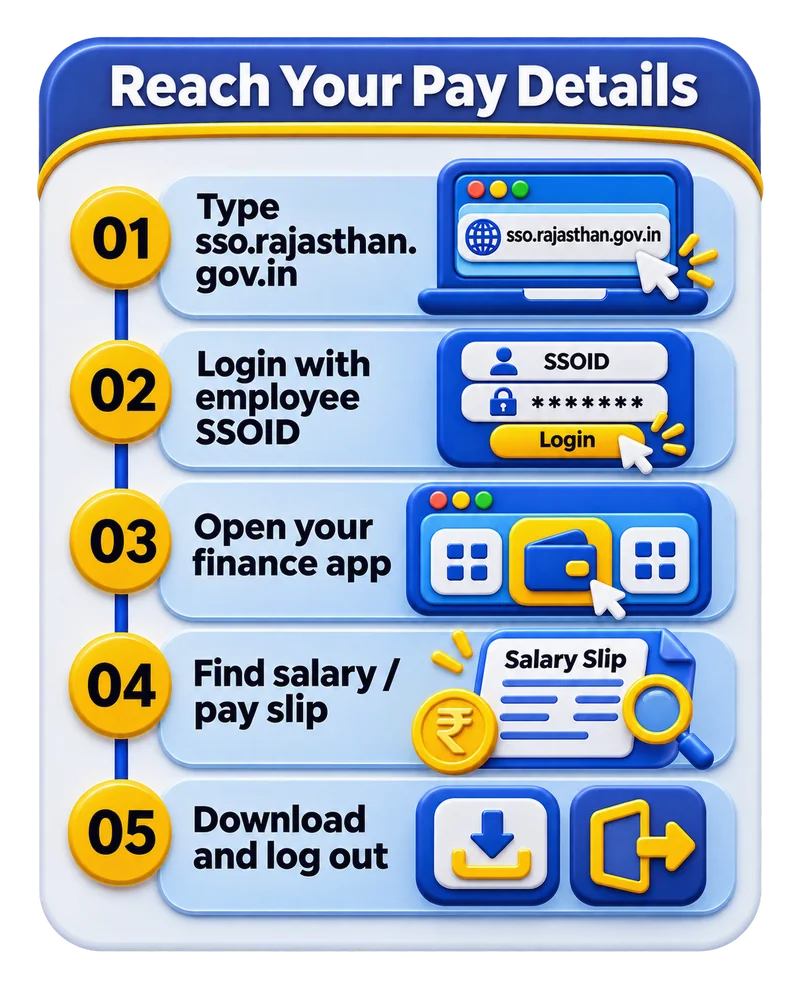
The salary slip shows what the office billed and paid. If an amount, deduction or allowance looks wrong, the change must be made by your office, not by you. Speak to your DDO or billing clerk first.
Salary Slip Paymanager: What to Check
When you open your salary slip, check these points before you save or share it.
- Name and employee details: Make sure your name and employee ID are correct. Errors here must be fixed by your office.
- Month and year: Confirm you opened the right month, especially when downloading slips for a bank or loan.
- Gross pay and allowances: Compare with your previous slip. A sudden change may mean an increment, arrears or a correction.
- Deductions: Look at deductions such as provident fund, insurance and tax. For GPF and insurance questions, see our SIPF portal guide.
- Net amount: This is what should reach your bank account. If the bank credit differs, ask your office.
- Keep it private: Your slip shows your bank and salary details. Share it only with people who truly need it.
Common Paymanager Login Problems and Fixes
Most “paymanager not opening” complaints are really SSO login problems or app mapping problems. Here are the common ones.
I cannot see Pay Manager or any salary app on my SSO dashboard.
Your salary apps appear only when your employee SSOID is linked to your service record. Make sure you logged in with your Govt. Employee SSOID, not a citizen ID. If it is still missing, ask your office DDO to check your employee record and app access.
I forgot my SSOID.
Use “I Forgot my Digital Identity (SSOID). Click Here” on the login page and choose Govt. Employee, or send “RJ SSO” to 9223166166 from your registered mobile. Full steps are on our forgot SSO ID page.
I forgot my SSO password.
Use “I Forgot my Password. Click Here” and reset by mobile or personal email, or send “RJ SSO PASSWORD” to 9223166166 from your registered mobile. See the SSO password reset guide.
The SMS reset says my ID is not found.
The forgot options work only if you logged in to SSO at least once on or after 07/09/2018. If you have not, contact your district RajSSO helpdesk.
My salary slip for the current month is not showing.
The slip usually appears only after your office has processed the salary bill for that month. Wait a few days after salary credit, then check again. If it is still missing, ask your billing clerk whether the bill has been processed.
The page opens but shows an error or stays blank.
Clear your browser cache, close all tabs and log in again from sso.rajasthan.gov.in. Peak days like the start of the month can be slow, so try again later. If the error stays, note the message and contact the IFMS helpdesk.
I have two SSO IDs.
Salary apps are linked to the ID your department uses. Log in with that one. If your records are split, read our merge SSO ID guide.
Pay Manager and IFMS Helpdesk Numbers
The SSO portal’s helpdesk list does not show a separate entry named Pay Manager. It does list IFMS and related finance apps, which are the right official contacts for salary and bill processing systems. These details were checked on the SSO helpdesk page on 4 November 2026. The SSO helpdesk works on working days from 10 AM to 6 PM.
| App (as listed on the SSO helpdesk) | Phone | |
|---|---|---|
| IFMS | 0141-2924501 | [email protected] |
| IFMS 3.0 | 0141-2924501 | [email protected] |
| IFMSR | 0141-2740637, 5111007, 5111010 | [email protected] |
| IFMS-LTA | 0141-2740637, 5111007, 5111010 | [email protected] |
| Finance | 0141-2924462 | [email protected] |
Before calling, try your office DDO first, because most salary slip problems are fixed at the office level. When you contact a helpdesk, give your SSOID, office, department and a screenshot of the error. Never share your password or OTP. For SSO account problems, see our SSO ID helpline number page.
Tips for Safe Pay Manager Access
- Use your employee SSOID: Salary apps are linked to the Govt. Employee ID, not to a citizen ID.
- Keep your mobile number updated: Password resets go to your registered mobile. See SSO ID mobile number change if it has changed.
- Bookmark the real address: Save sso.rajasthan.gov.in and start from there every time.
- Avoid fake portals: Search results sometimes show look-alike sites. Our fake SSO websites page explains how to spot them.
- Do not share logins: Never let an agent or colleague log in for you. Your salary and bank details are inside.
हिंदी में जानकारी
पे मैनेजर (Pay Manager) राजस्थान वित्त विभाग की वेतन और बिल प्रोसेसिंग प्रणाली है, जिसका उपयोग DDO और कार्यालय के बिल लिपिक वेतन बिल बनाने के लिए करते हैं। सरकारी कर्मचारी आमतौर पर sso.rajasthan.gov.in पर अपनी कर्मचारी SSOID, पासवर्ड और कैप्चा से लॉगिन करके डैशबोर्ड पर दिख रहे कर्मचारी या वित्त ऐप से अपनी वेतन पर्ची देखते हैं। अगर ऐप नहीं दिख रहा है तो अपने कार्यालय के DDO से संपर्क करें। वेतन में कोई गलती हो तो उसका सुधार कार्यालय ही करता है। IFMS हेल्पडेस्क: 0141-2924501, ईमेल [email protected]। अपना पासवर्ड या OTP किसी को न बताएं।
FAQs
Conclusion
Paymanager login is easiest when you remember the route: sso.rajasthan.gov.in, your employee SSOID and password, captcha, Login, then the employee or finance app your office uses. From there you can view salary details and download your pay slip once the bill has been processed.
Most problems come from a missing app mapping, a forgotten password or a salary entry that only your office can change. Talk to your DDO first, use the IFMS helpdesk on 0141-2924501 for system issues, and read our employee SSO login guide for more help. Stay safe and never share your password or OTP.