
SSO Admit Card 2026: Download Your Exam Admit Card With SSO ID
Admit cards for RPSC and RSSB recruitment exams are released on the Rajasthan Recruitment Portal, which you reach through your SSO ID. Here is the step-by-step flow and what to check before exam day.
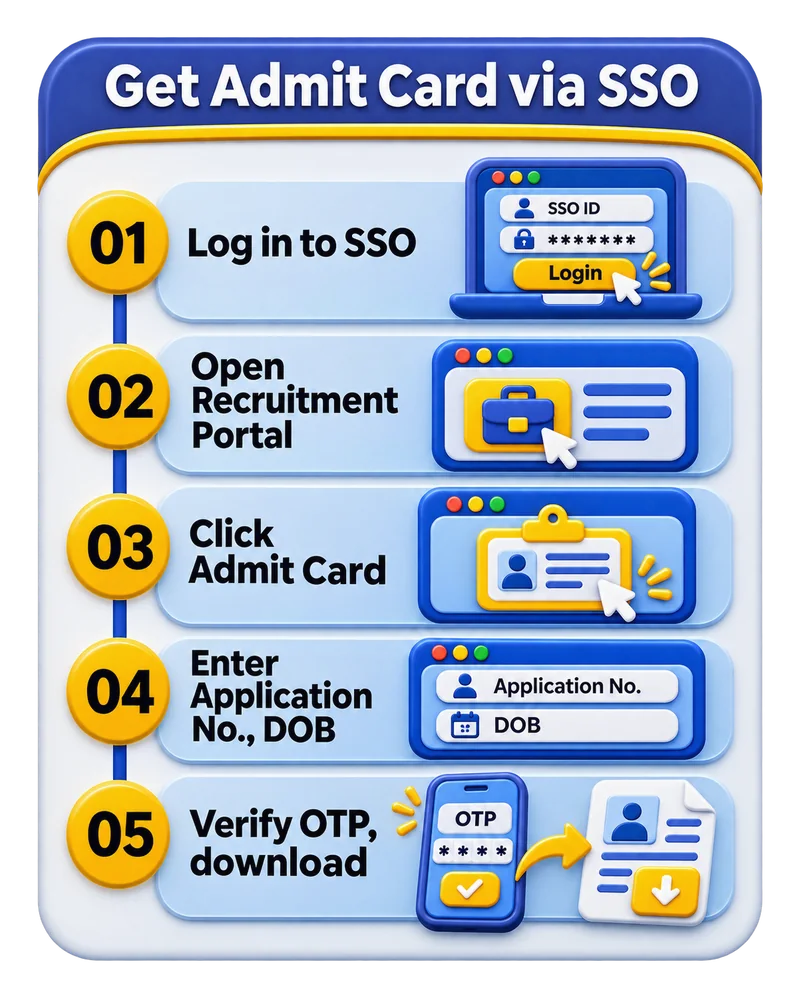
To download your SSO admit card, log in at sso.rajasthan.gov.in, open the Recruitment Portal app and use its “Admit Card” option, or open recruitment.rajasthan.gov.in and click “Admit Card” in the top menu. You will need your application number and date of birth, and the download takes only a few minutes once the admit card has been released.
Dear users, this guide shows the full flow for RPSC and RSSB exams, the exact fields on the admit card form, what to check on the card, common problems and the official Recruitment Portal helpdesk. We are an independent guide, not the government portal. We do not list exam dates here; always follow the official notice for your exam.
Steps checked on the official portal on 4 November 2026. Independent guide — not the Government of Rajasthan.
How SSO and the Recruitment Portal Work Together
Rajasthan uses one online system for most state recruitments. Your SSO ID is the key that connects you to it.
The official Rajasthan Recruitment Portal (recruitment.rajasthan.gov.in) calls itself “a unified portal for various recruitments in the state of Rajasthan”. It lists a “One-time registration system for candidates through single sign-on” and an “Information system for candidates through SSO dashboard, e-mail, SMS, WhatsApp and social media”. In short, your One Time Registration (OTR), applications and admit cards are all tied to your SSO ID.
The portal shows the exam life cycle in stages, from Registration and Advertisement to Application, then “Admit Card Release & Exam Details Notification”, followed by Examination, Answer Key and Result. So the admit card appears only after the recruiting body releases it for your exam. If you applied for an RPSC exam, also see our RPSC SSO login guide.
How to Download Admit Card From SSO ID Step by Step
These steps use the field names seen on the Recruitment Portal’s admit card page on 4 November 2026. Your exam’s notice may add extra instructions, so read it too.
Step 1: Open the Official SSO Portal
Type sso.rajasthan.gov.in yourself in your browser. Do not use admit card links from WhatsApp groups or unknown websites.
Step 2: Log In With Your SSOID
Fill “Digital Identity (SSOID/ Username)”, “Password” and “Enter Captcha”, then click “Login”. Use the same SSOID you used to apply for the exam. Need help? Read our SSO ID login guide.
Step 3: Open the Recruitment Portal App
On your SSO dashboard, click the Recruitment Portal app. This takes you to your candidate area, where your applications are listed.
Step 4: Go to Admit Card
Click “Admit Card”. You can also reach the same page directly from the top menu of recruitment.rajasthan.gov.in, which shows Home, SSO ID, Admit Card, OMR, Results and FAQs / User Manual.
Step 5: Fill the Admit Card Form
Choose the stage under “Admit Card For”: Pre Exam, Main Exam or Interview. Then enter your “Application No.” and “Date Of Birth”, type the “CAPTCHA” and click “Get Admit Card”. If you have lost your application number, use the “Forgot Application ID” link on the same form.
Step 6: Verify OTP and Download
The portal may ask for an OTP with the message “Please enter OTP send to your mobile number”. Enter it and click “Verify OTP”. Download the admit card PDF, save it on your phone and take a clear printout.
If the admit card for your exam has not been released yet, the portal will not show it. Wait for the official notice from RPSC or RSSB rather than trying again and again. Too many quick attempts can trigger a message asking you to try after 10 minutes.
Quick Route Without Full SSO Login
- Step 1: Type recruitment.rajasthan.gov.in yourself.
- Step 2: Click “Admit Card” in the top menu.
- Step 3: Select “Admit Card For” (Pre Exam, Main Exam or Interview).
- Step 4: Enter “Application No.”, “Date Of Birth” and the “CAPTCHA”.
- Step 5: Click “Get Admit Card”, verify the OTP if asked, and download.
Some candidates prefer the direct page. It uses the same details.
What to Check on Your Admit Card
- Name and father’s name: Must match your application and ID proof exactly.
- Photo and signature: Must be your own, clear and not blank.
- Date of birth and category: Must match what you submitted.
- Roll number and exam name: Make sure the card is for the right exam and stage.
- Exam centre address: Note the full address and plan your travel early.
- Reporting time and gate closing time: Late entry is usually not allowed.
- Instructions: Read the rules on items allowed and ID proof you must carry.
Common SSO Admit Card Problems and Fixes
Most admit card problems fall into a few groups. Here is what to do for each.
The admit card is not showing.
First confirm from the official notice that the admit card for your exam and stage has been released. Check that you selected the right option under “Admit Card For” and typed your application number and date of birth exactly. If it still fails, contact the Recruitment Portal helpdesk.
I forgot my application number.
Use the “Forgot Application ID” link on the admit card form. You can also find your applications after logging in to the Recruitment Portal through SSO.
The photo or signature on the admit card is wrong or blank.
Do not edit the PDF yourself. Email [email protected] or call the helpline for your exam (RPSC or RSSB) with your application number and a screenshot, and follow the instructions they give.
The OTP is not coming.
The OTP goes to the mobile number in your record. Check network, wait a minute and use “Resend OTP” when it is enabled. If your number has changed, get it updated first.
I forgot my SSOID.
Click “I Forgot my Digital Identity (SSOID). Click Here” on the SSO login page, or send “RJ SSO” to 9223166166 from your registered mobile. Full steps are on our forgot SSO ID page.
I forgot my SSO password.
Use “I Forgot my Password. Click Here” or send “RJ SSO PASSWORD” to 9223166166 from your registered mobile. Both work only if you logged in at least once on or after 07/09/2018. See password reset.
The PDF will not open on my phone.
Install or update a PDF reader, or download it again on a computer. Make sure the download finished completely.
Recruitment Portal Helpdesk Number and Email
The SSO helpdesk page lists these contacts for the Recruitment Portal (checked 4 November 2026; SSO helpdesk hours are working days, 10 AM to 6 PM):
The Recruitment Portal’s own footer (checked the same day) also shows contact number 7340557555 / 9352323625 with timing 9:30 AM to 6:00 PM, RPSC Helpline 0145-2635212 / 2635200 and RSSB Helpline 0141-2722520.
| Body | Phone | |
|---|---|---|
| RPSC | 0145-2635200 | [email protected] |
| RSSB | 0141-2722520 | [email protected] |
| Other | 9352323625 | [email protected] |
When you write, include your SSOID, application number, exam name and a screenshot. Never share your password or OTP. For SSO account issues, see our SSO ID helpline number page.
हिंदी में जानकारी
SSO से एडमिट कार्ड डाउनलोड करने के लिए sso.rajasthan.gov.in पर अपनी SSOID, पासवर्ड और कैप्चा से Login करें और Recruitment Portal ऐप खोलें। वहाँ “Admit Card” पर क्लिक करें, “Admit Card For” में Pre Exam, Main Exam या Interview चुनें, फिर Application No., Date Of Birth और CAPTCHA भरकर “Get Admit Card” पर क्लिक करें। मोबाइल पर आए OTP से सत्यापन करें और PDF डाउनलोड करें। एडमिट कार्ड पर नाम, फोटो, रोल नंबर और परीक्षा केंद्र ज़रूर जाँचें। समस्या होने पर [email protected] पर ईमेल करें या RPSC 0145-2635200, RSSB 0141-2722520 पर संपर्क करें।
FAQs

Conclusion
Getting your SSO admit card is straightforward: log in at sso.rajasthan.gov.in, open the Recruitment Portal, click “Admit Card”, fill the stage, application number, date of birth and captcha, verify the OTP and download. Check every detail on the card and keep both a printout and a saved PDF.
If anything is wrong, contact the Recruitment Portal helpdesk early, not on exam morning. For general SSO problems, see our SSO ID problems page. Type the official address yourself, keep your OTP private, and best of luck in your exam.