
SSO ID Open 2026: How to Open the Real Rajasthan SSO Login Page
Type sso.rajasthan.gov.in/signin in your browser to open the official Rajasthan SSO login page. Here is how to recognise the real page, fix it when it will not load, and stay away from fake sites.
To open SSO ID, type sso.rajasthan.gov.in/signin directly into your browser’s address bar and press Enter; the official Rajasthan Single Sign On login page opens in a few seconds. That one address is all you need for the “sso id open login Rajasthan” search, and it works the same on mobile and computer.
Dear users, many people search “sso id open” every day and land on look-alike pages, ad pages or old links. In this guide we show you the exact official addresses, how to check that the page in front of you is the real one, and what to do when the SSO website is not opening. This is an independent guide, not the government portal, and we will never ask for your password or OTP.
Steps checked on the official portal on 4 November 2026. Independent guide — not the Government of Rajasthan.
SSO ID Open: The Official Address
The official Rajasthan SSO portal lives at sso.rajasthan.gov.in. It is built and hosted by the Department of Information Technology & Communication (DoIT&C), Government of Rajasthan. Follow these steps to reach the login page safely every time.
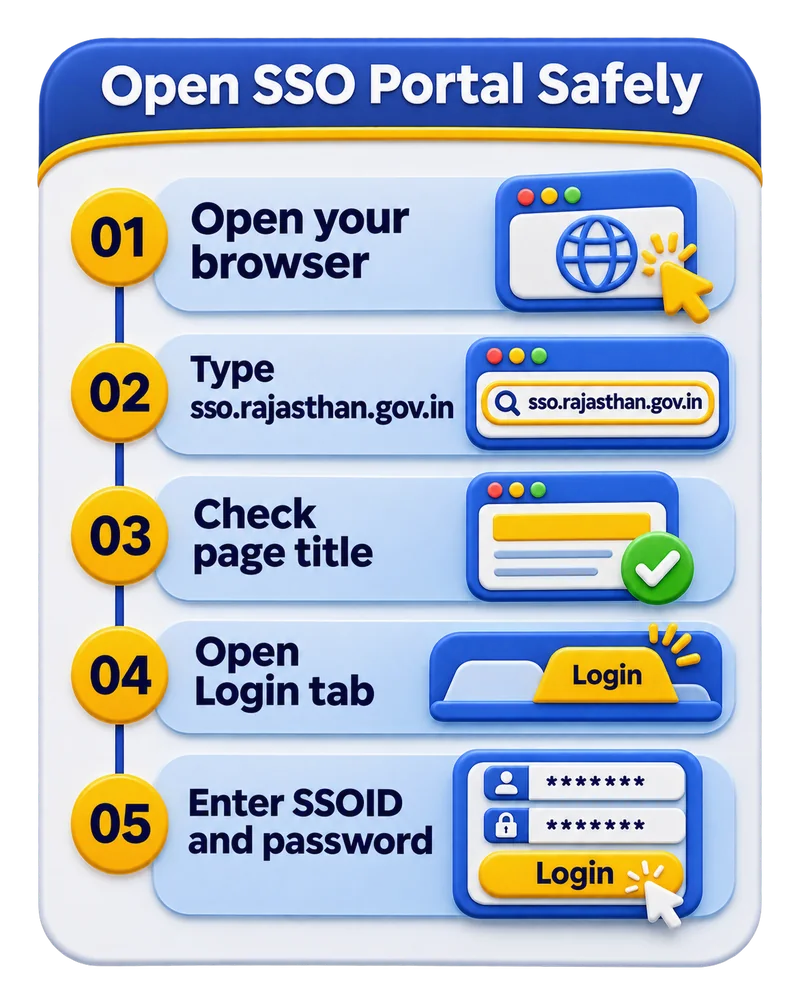
Step 1: Open Your Browser Yourself
Open Chrome, Edge, Firefox, Safari or any updated browser on your phone or computer. Do not start from a link in a WhatsApp forward, an SMS from an unknown number or a random advert, because such links can lead to copies of the portal.
Step 2: Type the Address by Hand
In the address bar (not the Google search box inside a page), type sso.rajasthan.gov.in and press Enter. If you want the login form straight away, type sso.rajasthan.gov.in/signin instead. Typing it yourself is the safest way to reach the sso.rajasthan.gov.in login page.
Step 3: Check the Address Bar Again
Once the page loads, look at the address bar. It must read sso.rajasthan.gov.in, with “.rajasthan.gov.in” at the end of the site name. Extra words, hyphens or a different ending (such as .com, .in alone or .org) mean you are on a different website.
Step 4: Confirm the Page Name and Tagline
The real page is titled “Rajasthan Single Sign On” and shows the tagline “One Digital Identity for all Applications”. You will also see a language toggle for English and हिन्दी at the top.
Step 5: Use the Login or Registration Option
Use Login if you already have an SSOID, or Registration if you are new. For the full login walk-through, see our SSO ID login guide, and for a new account see SSO ID registration.
Bookmark sso.rajasthan.gov.in/signin after you open it once by typing. Next time, tap the bookmark instead of searching, so you never land on a fake result by mistake.
How to Recognise the Real SSO Login Page
When the “SSO portal open” step works, the real sign-in page has a few clear signs. Check these before you type anything. Steps checked on 4 November 2026.
- Address: The address bar shows sso.rajasthan.gov.in, ending in .rajasthan.gov.in.
- Page name: “Rajasthan Single Sign On” with the tagline “One Digital Identity for all Applications”.
- Login and Registration: Separate options for Login (/signin) and Registration (/register).
- First field: The ID box is labelled “Digital Identity (SSOID/ Username)”.
- Other fields: “Password” and “Enter Captcha”, with audio and refresh icons next to the captcha, then a “Login” button.
- Meri Pehchaan button: A “Meri Pehchaan” button for the national single sign-on (powered by e-Pramaan).
- Recovery links: “I Forgot my Digital Identity (SSOID). Click Here” and “I Forgot my Password. Click Here”.
- Counters: The sign-in page shows live counters for G2G apps, G2C/G2B apps and total identities (on 4 November 2026 it showed 431 G2G apps, 272 G2C/G2B apps and 34,482,130 identities).
- Language toggle: English and हिन्दी at the top of the page.
The real portal never asks you to pay a fee to log in, and it never asks you to share your OTP with anyone. If a page asks for money or an OTP over phone or chat, close it.
Page You Need → Official Address
Each task on the portal has its own page. Type the address below directly to save time, especially when the home page is slow.
If you forgot your ID, our forgot SSO ID guide explains every recovery route. For the password, read SSO ID password reset.
| Page you need | Official address (type it yourself) | Use it when |
|---|---|---|
| Login | sso.rajasthan.gov.in/signin | You have your SSOID and password |
| Registration | sso.rajasthan.gov.in/register | You are creating a new SSOID (Citizen/ Udhyog or Govt. Employee) |
| Forgot SSOID | sso.rajasthan.gov.in/forgotsd | You do not remember your SSOID |
| Forgot Password | sso.rajasthan.gov.in/forgot | You know your SSOID but forgot the password |
| Helpdesk | sso.rajasthan.gov.in/helpdesk | You need district or app helpdesk phone numbers and emails |
SSO Website Not Opening? Try These Fixes
“SSO website not opening” usually has a simple cause on your side or heavy traffic on the portal side. Work through these fixes in order before you give up.
The page keeps loading or shows a blank white screen.
Check your internet first by opening any other website. Then close the tab, open a new one and type sso.rajasthan.gov.in/signin again. If you are on mobile data with weak signal, move to a better spot or switch to Wi-Fi.
“This site can’t be reached” or a connection error appears.
Make sure you typed the address correctly, with no spaces and with “.rajasthan.gov.in” at the end. Turn your mobile data or Wi-Fi off and on, or restart the router. If it still fails, the server may be down for a short time, so try again after some time.
The page opens but looks broken, or buttons do not respond.
Clear your browser cache and cookies for the site, then reload. You can also try a private or incognito window, which opens the page without old saved files. Updating your browser to the latest version often fixes broken layouts.
The captcha does not appear or keeps failing.
Use the refresh icon beside the captcha to get a new one, or the audio icon if the image is hard to read. Type it exactly as shown. If the captcha image itself does not load, reload the page or try a different browser.
The server is busy during exam forms, results or admit card days.
The portal serves crores of identities and hundreds of apps, so it can slow down when many people log in at once. Try early in the morning or late at night. Do not keep pressing refresh every second, as this only adds load.
It works on desktop but not on mobile (or the other way round).
Try the other device or another browser on the same device. On mobile, use the “Desktop site” option in the browser menu if a page does not fit well. Close other apps and tabs that use a lot of data.
The address opens a different-looking site.
You may have clicked an advert or a look-alike link. Close it, clear that tab and type sso.rajasthan.gov.in yourself. Never enter your SSOID or password on a page whose address does not end in .rajasthan.gov.in.
If nothing works for a full day, call your district RajSSO helpdesk on a working day between 10 AM and 6 PM. All district numbers are on our SSO ID helpline number page. More fixes are listed in SSO ID problems.
Stay Safe From Fake SSO Look-alike Sites
Because so many people search “sso rajasthan gov in”, some websites copy its colours and words. A copy page can steal your SSOID and password. These simple habits keep you safe.
Type, Don’t Click
Always type sso.rajasthan.gov.in yourself or use your own bookmark. Search results can include adverts and copied pages that look official.
Read the Ending
The real site ends in .rajasthan.gov.in. Names like “sso-rajasthan” on a .com, .org or .in address are not the government portal.
Never Share OTP
No genuine helpdesk will ask you for your OTP or password. If someone asks, it is a scam, even if they say they are calling from the government.
No Fees to Log In
Opening and using the login page is free. A page asking for payment just to open your SSO account is not the official one.
Guides Are Not the Portal
Help sites like this one only explain steps. Do not type your password on any guide page; do it only on sso.rajasthan.gov.in.
Use Trusted Devices
At a cyber café or e-Mitra kiosk, log out after use and do not let the browser save your password.
Mobile vs Desktop: Which Is Better?
Both work. The SSO portal opens in any modern mobile browser, so you do not need a separate app just to open the login page. On a small screen, zoom in on the captcha and type slowly to avoid mistakes.
For long forms, document uploads and printing admit cards, a desktop or laptop is easier. If a page on mobile looks cut off, turn on “Desktop site” in your browser menu. For admit cards specifically, see our SSO admit card guide.
हिंदी में जानकारी
SSO ID खोलने के लिए अपने ब्राउज़र के एड्रेस बार में खुद sso.rajasthan.gov.in/signin टाइप करें और Enter दबाएं। असली पेज का नाम “Rajasthan Single Sign On” होता है और उस पर “Digital Identity (SSOID/ Username)”, “Password” और “Enter Captcha” वाले बॉक्स दिखते हैं। अगर वेबसाइट नहीं खुल रही है, तो इंटरनेट जांचें, ब्राउज़र का cache साफ करें, दूसरा ब्राउज़र या डिवाइस आज़माएं और भीड़ के समय कुछ देर बाद फिर कोशिश करें। केवल वही पेज इस्तेमाल करें जिसका पता .rajasthan.gov.in पर खत्म होता है, और किसी को भी अपना पासवर्ड या OTP न बताएं। समस्या बनी रहे तो कार्य दिवसों में सुबह 10 से शाम 6 बजे तक अपने ज़िले के RajSSO हेल्पडेस्क से संपर्क करें।
FAQs

Conclusion
To open SSO ID safely in 2026, type sso.rajasthan.gov.in/signin yourself, check that the address ends in .rajasthan.gov.in and that the page reads “Rajasthan Single Sign On”. Keep the direct addresses for Registration, Forgot SSOID, Forgot Password and Helpdesk handy.
If the website is not opening, fix your connection and browser first, then try again later. Still stuck? Use the district helpdesk numbers on our SSO ID helpline number page, and never share your password or OTP with anyone.