
SSO ID App 2026: How to Use Raj SSO Safely on Your Mobile
The official Rajasthan SSO portal does not offer a separate citizen login app on its pages. Open sso.rajasthan.gov.in in your phone’s browser and add it to your home screen for one-tap, app-like access.
For the “sso id app”, the safest route in 2026 is to open sso.rajasthan.gov.in/signin in your phone’s browser and save it to your home screen; it takes less than a minute and works exactly like an app. When we checked the official portal’s sign-in page and sitemap on 4 November 2026, they did not show any link to a citizen SSO login app, so be very careful with any “Raj SSO app” or “SSO app download” link you find elsewhere.
Dear users, many people search for an SSO ID login app because they use the portal on mobile every day. In this guide we explain what the official portal offers, how to create a home-screen shortcut on Android and iPhone, how to spot unofficial look-alike apps and APK files, and how to log in smoothly on a small screen. This is an independent guide, not the government portal, and we will never ask for your password or OTP.
Steps checked on the official portal on 4 November 2026. Independent guide — not the Government of Rajasthan.
Is There an Official SSO ID App?
Here is what we could confirm, and what we could not. Steps checked on 4 November 2026.
The official Rajasthan Single Sign On portal (tagline “One Digital Identity for all Applications”) is a website built and hosted by the Department of Information Technology & Communication (DoIT&C), Government of Rajasthan. Its sign-in page and sitemap list Login, Registration, Forgot SSOID, Forgot Password, Helpdesk Details, Website Policies, Password Policy and Sitemap. We did not find any link on these pages to a Play Store or App Store app for citizen login.
Some departments run their own apps for specific jobs. For example, the portal’s helpdesk page lists a separate “RajSSO-Attendance Mgmt. System” helpdesk, which relates to attendance for government staff. Such tools are not a general “Raj SSO app” for students, job applicants or citizens, so do not assume any app with “SSO” in its name is the one you need.
Because we cannot confirm an official citizen SSO ID app, our advice is simple: use the official website in your phone’s browser. It gives you the full portal, including every app tile, without installing anything from an unknown source.
If you ever see a message saying “download the new SSO app to keep your ID active”, treat it as a warning sign. Type sso.rajasthan.gov.in yourself and check there instead.
Make Your Own SSO ID App: Add to Home Screen
A home-screen shortcut opens the real portal with one tap, just like an app icon. It does not install any extra file, so it is safe and uses no extra storage.
Step 1: Open the Official Portal Yourself
Open Chrome on Android or Safari on iPhone. In the address bar, type sso.rajasthan.gov.in/signin and press Go. Do not start from a WhatsApp forward, SMS link or advert.
Step 2: Check That the Page Is Genuine
Look at the address bar: it must end in .rajasthan.gov.in. The page should read “Rajasthan Single Sign On”, and the ID box should be labelled “Digital Identity (SSOID/ Username)”. If anything looks different, close the tab.
Step 3: Android (Chrome) – Add to Home Screen
Tap the three-dot menu at the top right of Chrome. Choose “Add to Home screen” (on some phones it may show as “Install” or similar). Give the shortcut a short name such as “Raj SSO” and confirm.
Step 4: iPhone (Safari) – Add to Home Screen
Tap the Share button (the square with an arrow pointing up). Scroll down and tap “Add to Home Screen”. Edit the name if you like, then tap “Add” at the top right.
Step 5: Open SSO From the New Icon
Go back to your home screen and tap the new icon. The official sign-in page opens directly. Now you have your own SSO ID login app shortcut that always points to the real address.
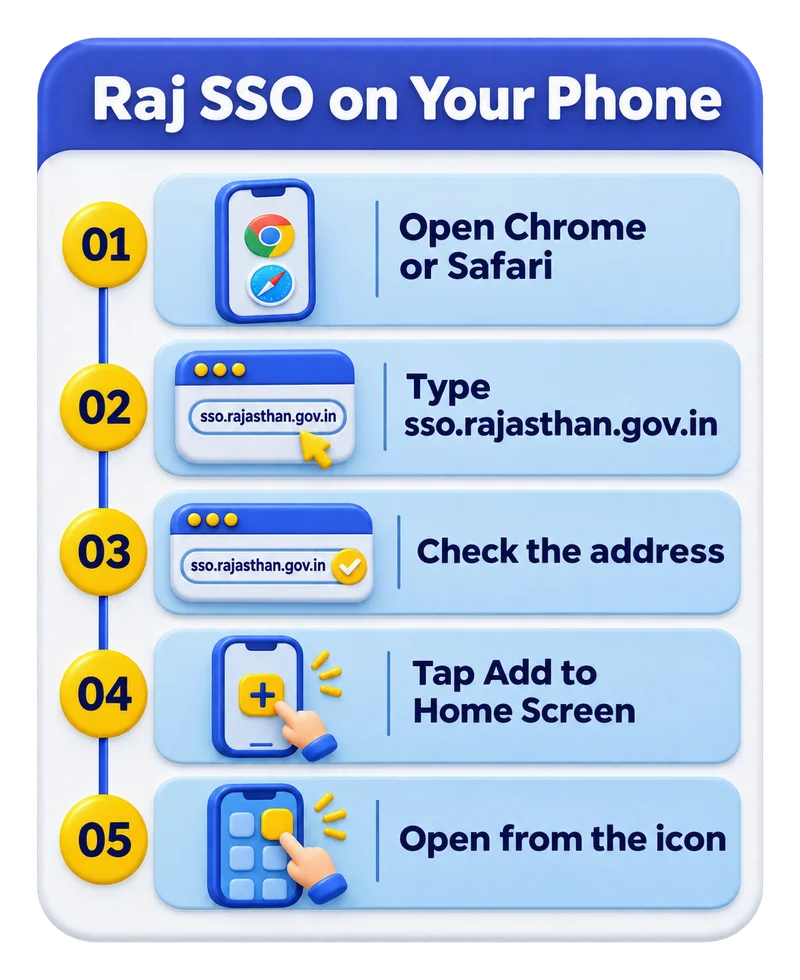
Menu names can differ slightly between phone brands and browser versions. If you do not see “Add to Home screen”, update your browser or look for “Bookmark” and save the page instead.
How to Spot Fake SSO Apps and APKs
Search results for “sso app download” can show unofficial apps, file-sharing links and APK files. Some are harmless guides; others may show heavy ads or try to collect your login details. Use this checklist before installing anything.
- No APK files: Never install an SSO “app” from an .apk file sent on WhatsApp, Telegram or a download website. Files from outside the Play Store can contain harmful code.
- Developer name: On the Play Store, open the app page and scroll to the developer or “App support” section. Check who publishes it. An individual name, a random company or a free email address is a red flag for something claiming to be the government login.
- Description wording: Many unofficial apps say “not affiliated with the government” in small text. Read the full description before you tap Install.
- Login inside the app: If an unknown app asks you to type your SSOID and password inside it, stop. Type your password only on sso.rajasthan.gov.in.
- Permissions: A login helper does not need access to your SMS, contacts or call logs. Refuse such permissions and uninstall the app.
- Payment requests: Logging in to SSO is free. Any app asking for money to “activate” or “unlock” your SSO ID is not official.
- Reviews and ratings: Very new apps with few reviews, or many complaints about ads and data, should be avoided.
Read more red flags and what to do if you already shared your details in our fake SSO websites guide.
SSO ID Login on Mobile: Step by Step
Once you open the portal from your shortcut, logging in on a phone is the same as on a computer. Here is the quick flow.
- Step 1: Tap your home-screen icon or type sso.rajasthan.gov.in/signin.
- Step 2: Make sure the Login option is selected.
- Step 3: Enter your SSOID or username in “Digital Identity (SSOID/ Username)”.
- Step 4: Type your Password carefully; check that caps lock or auto-capitalisation has not changed the first letter.
- Step 5: Fill “Enter Captcha”. Use the refresh icon for a new captcha or the audio icon if it is hard to read.
- Step 6: Tap “Login” and wait for your dashboard with the app tiles to load.
For the full walk-through and common login errors, see our SSO ID login guide.
Mobile Login Tips That Save Time
Small screens cause most mobile login problems. These habits make the portal easier to use on a phone.
Zoom on the Captcha
Pinch to zoom before typing the captcha. Small letters such as “l” and “I” are easy to mix up on a phone.
Watch Auto-Correct
Phone keyboards may add a capital letter or a space. Check your SSOID and password before tapping Login.
Use Desktop Site if Needed
If a page looks cut off, open the browser menu and turn on “Desktop site”. This helps on long forms.
Keep Your Browser Updated
An old browser can show broken buttons. Update Chrome or Safari from the official store.
Do Not Save Password on Shared Phones
On a family or shop phone, choose “Never” when the browser offers to save your password, and log out after use.
Try Off-Peak Hours
During exam forms or results, the portal can be slow. Early morning or late night is often faster.
Recover Without an App
Forgot your ID? Use sso.rajasthan.gov.in/forgotsd or send “RJ SSO” to 9223166166 from your registered mobile. Details are in forgot SSO ID.
Reset Your Password by SMS
From your registered mobile, send “RJ SSO PASSWORD” to 9223166166, or use sso.rajasthan.gov.in/forgot. See SSO ID password reset.
Browser Shortcut vs Unknown App
Here is a quick comparison to help you decide.
| Point | Browser shortcut to sso.rajasthan.gov.in | Unknown “SSO app” or APK |
|---|---|---|
| Source | The official portal you typed yourself | Unclear publisher |
| Where your password goes | Only to sso.rajasthan.gov.in | Could be anywhere |
| Storage used | Almost none | Full app install |
| Permissions | None extra | May ask for SMS, contacts and more |
| Updates | Always the live portal | Depends on the app maker |
| Cost | Free | Free or ad-heavy; may ask for money |
हिंदी में जानकारी
4 नवंबर 2026 को जांच के समय आधिकारिक SSO पोर्टल के साइन-इन पेज और साइटमैप पर नागरिकों के लिए किसी अलग SSO लॉगिन ऐप का लिंक नहीं दिखा। इसलिए सबसे सुरक्षित तरीका है कि आप फोन के ब्राउज़र में खुद sso.rajasthan.gov.in/signin टाइप करें। Chrome में तीन-डॉट मेनू से “Add to Home screen” और iPhone के Safari में Share बटन से “Add to Home Screen” चुनकर इसका आइकन होम स्क्रीन पर बना लें, यह ऐप की तरह ही खुलेगा। WhatsApp या किसी वेबसाइट से भेजी गई APK फाइल कभी इंस्टॉल न करें और Play Store में ऐप के डेवलपर का नाम ज़रूर देखें। अपना SSOID पासवर्ड केवल .rajasthan.gov.in वाले पेज पर ही डालें और OTP किसी को न बताएं।
FAQs

Conclusion
You do not need to hunt for an SSO ID app. Type sso.rajasthan.gov.in/signin in your phone’s browser, check that the address ends in .rajasthan.gov.in, and add it to your home screen for one-tap access that always reaches the real portal.
Avoid APK files and unknown apps that ask for your password, permissions or money. If you get stuck on mobile, see our SSO ID login guide or contact your district RajSSO helpdesk through our SSO ID helpline number page.