
SSO ID Mobile Number Change 2026: Update Your Mobile and Email Safely
Mobile and email details are updated from your profile after you log in to the official portal. If your old number is gone and you cannot log in, there is still a way forward.
For an SSO ID mobile number change, log in at sso.rajasthan.gov.in/signin, open your profile, edit the mobile number or email shown there and complete any OTP verification the portal asks for. If you have lost the old number and cannot log in, first try the Forgot SSOID and Forgot Password routes, then contact your district RajSSO helpdesk.
Dear users, your registered mobile number matters a lot on the SSO portal: password resets, SSOID recovery by SMS and many OTPs depend on it. In this guide we explain the update in simple terms, what to check if your details come from Jan Aadhaar, and what to do when the old SIM is closed. Steps checked on 4 November 2026. We keep this page to what can be verified, so where the portal’s own screens decide the exact steps, we say so. This is an independent guide; we never ask for your password or OTP.
Steps checked on the official portal on 4 November 2026. Independent guide — not the Government of Rajasthan.
SSO ID Mobile Number Change After Login
If you can still log in, updating your mobile number or email is a profile task. Menu names can differ between portal versions, so follow the labels you see on your own screen.
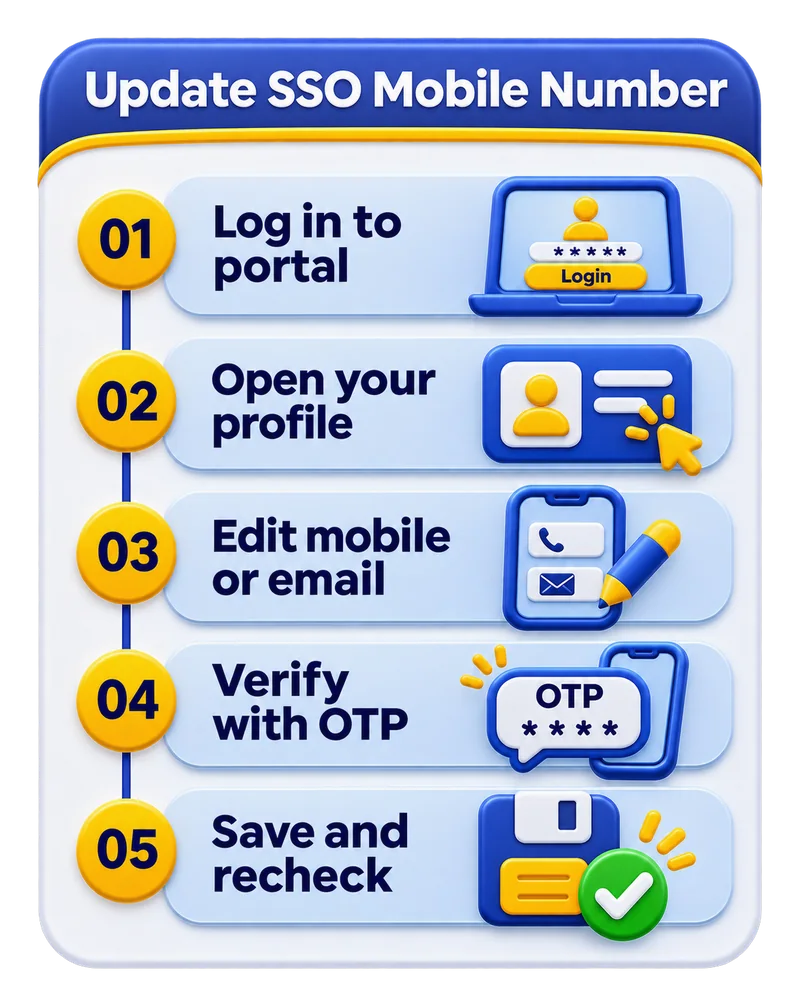
Step 1: Open the Official Login Page
Type sso.rajasthan.gov.in/signin into your browser yourself and check that the address ends in .rajasthan.gov.in. Need help opening it? See our SSO ID open guide.
Step 2: Log In With Your SSOID
Enter your SSOID in “Digital Identity (SSOID/ Username)”, then your “Password” and the captcha, and press “Login”. If you forgot either detail, use the recovery routes further down this page first.
Step 3: Open Your Profile
From your dashboard, open your profile or account details. This is where the portal shows your personal information, including the mobile number and email on record.
Step 4: Edit the Mobile Number or Email
Look for the option to update or edit your contact details and enter the new mobile number or email. Type it carefully, because future OTPs and SMS will go to this number.
Step 5: Verify With OTP if Asked
The portal may send an OTP to confirm the change. Enter it only on the official page. Never share it with anyone who calls or messages you.
Step 6: Save and Recheck
Save the changes, then reopen your profile to confirm the new number or email is shown. A good test is to log out and log in again.
Some fields on your profile may be locked for editing because they come from another record, such as Jan Aadhaar. If the edit option is not available for a field, see the next section.
Jan Aadhaar-Linked Details
If you registered with Jan Aadhaar, some of your profile details may be taken from your Jan Aadhaar record. In that case, the mobile number or other details may need to be updated in Jan Aadhaar first, after which the change may reflect on your SSO profile.
The exact process depends on your account and on the Jan Aadhaar system, so check what your profile screen allows. For Jan Aadhaar questions, the Jan Aadhaar helpdesk listed on the SSO helpdesk page is 0141-2850287 ([email protected]). You can learn more in our Jan Aadhaar SSO guide.
Users who registered with Google manage their email through their Google account, and government employees should follow the instructions given for employee accounts. See our SSO ID employee login guide if you are a state employee.
Old Number Lost and Cannot Log In?
This is the hardest case, because many recovery steps send an OTP or SMS to the old number. Work through these steps in order.
Step 1: Check Whether You Can Still Log In
If you remember your SSOID and password, simply log in and update the number from your profile as shown above. You do not need the old SIM for a normal login with SSOID, password and captcha.
Step 2: Recover a Forgotten SSOID
If you forgot your SSOID, use sso.rajasthan.gov.in/forgotsd and choose your type (Citizen, Udhyog or Govt. Employee) and the method you used (Jan Aadhaar, Aadhaar or Google). The SMS route (“RJ SSO” to 9223166166) needs the registered mobile, so it will not help if that SIM is gone. Full steps are in our forgot SSO ID guide.
Step 3: Reset the Password With Email
On sso.rajasthan.gov.in/forgot, try the “Email (Personal)” option if a personal email is linked to your account. This can let you reset the password without the old SIM. See our SSO ID password reset guide.
Step 4: Try to Get the Old SIM Back
If the number is only lost or damaged, your mobile operator may be able to issue a duplicate SIM on the same number. Once it works, all SMS and OTP routes work again.
Step 5: Contact Your District RajSSO Helpdesk
If none of this works, call or email your district RajSSO helpdesk on a working day between 10 AM and 6 PM. Explain that you have lost access to your registered mobile number and ask what proof they need. Do not create a new SSOID, because your old forms and records stay linked to the existing one.
District Helpdesk Numbers (Examples)
Every district has a RajSSO helpdesk listed on sso.rajasthan.gov.in/helpdesk, available on working days from 10 AM to 6 PM. Here are a few; the full list for all districts is on our SSO ID helpline number page.
| District | Phone | |
|---|---|---|
| Jaipur | 0141-2928239 | [email protected] |
| Jodhpur | 0141-2929224 | [email protected] |
| Kota | 0141-2929227 | [email protected] |
| Udaipur | 0141-2929240 | [email protected] |
| Ajmer | 0141-2929201 | [email protected] |
| Bikaner | 0141-2929210 | [email protected] |
| Alwar | 0141-2929202 | [email protected] |
| Jalore | 02973-64027 | [email protected] |
When you email a helpdesk, write your SSOID (if known), your name, district and the problem in short. Never send your password or OTP in the email.
Problems and Solutions
These are the issues people commonly face while trying to update the mobile number or email on SSO.
I cannot find an option to edit my mobile number.
The field may come from Jan Aadhaar or another linked record, so it may not be editable on SSO directly. Check whether the detail needs to be updated at the source first. If unsure, ask your district RajSSO helpdesk.
OTP is not coming to my new number.
Check that you typed the new number correctly and that the SIM has network signal and SMS is not blocked. Wait a minute or two before requesting again. If it keeps failing, try at a less busy time.
OTP is going to my old number, which I no longer have.
Try any option that lets you verify by email instead. If there is none, contact your district helpdesk and explain that the old number is no longer with you.
I want to change my email address.
Log in and check your profile for an option to update your email, then verify as the portal asks. If you registered with Google, your sign-in is tied to that Google account, so keep access to it.
Someone else’s number is on my SSO account.
This often happens when an e-Mitra operator or relative used their own number during registration. Log in and update it to your own number as soon as possible, or ask the helpdesk for help if you cannot.
The change saved but the old number still shows elsewhere.
Other department portals may keep their own copy of your details. Log out and in again, and check the specific service’s help for updating its records. More fixes are on our SSO ID problems page.
हिंदी में जानकारी
SSO ID में मोबाइल नंबर या ईमेल बदलने के लिए खुद sso.rajasthan.gov.in/signin खोलें, लॉगिन करें और अपनी प्रोफ़ाइल में जाकर नया नंबर या ईमेल दर्ज करें; पोर्टल OTP से सत्यापन मांग सकता है। अगर आपने Jan Aadhaar से पंजीकरण किया है, तो कुछ जानकारी पहले Jan Aadhaar में अपडेट करनी पड़ सकती है। पुराना नंबर बंद हो गया है और लॉगिन नहीं हो रहा, तो sso.rajasthan.gov.in/forgotsd से SSOID और sso.rajasthan.gov.in/forgot पर “Email (Personal)” विकल्प से पासवर्ड रीसेट करने की कोशिश करें। इसके बाद भी समस्या रहे तो कार्य दिवसों में सुबह 10 से शाम 6 बजे तक अपने ज़िले के RajSSO हेल्पडेस्क से संपर्क करें, जैसे जयपुर के लिए 0141-2928239। नई SSOID न बनाएं और अपना OTP या पासवर्ड किसी को न बताएं।
FAQs
Conclusion
An SSO ID mobile number change is done from your profile after login, usually with an OTP check. If your details come from Jan Aadhaar, they may need to be updated there first.
If the old number is gone and you cannot log in, use the Forgot SSOID and Forgot Password routes, try the personal email option, and then contact your district RajSSO helpdesk. Keep your new number updated so every future OTP reaches you.