
SSO ID Login Rajasthan 2026 | Fix Login Problems
SSO ID Login Rajasthan made easy! Access the official portal, fix login errors, recover your ID or password, and get back into your account.
I know you are trying to log in to your Rajasthan SSO ID but facing errors, forgotten credentials, or confusion about the correct login process? I also know how frustrating these problems can be, especially when you need to access an important government service, submit an application, or check your account details.
Dear users, with years of experience helping people resolve SSO ID login issues, I have seen how small problems can prevent users from accessing the services they need. That is why I created this SSO ID Login Guide portal to share practical solutions, explain the login process step by step, and help you troubleshoot common errors. Let me walk you through the process so you can understand what to do and find the right solution for your login problem.
How to Login to SSO ID Rajasthan
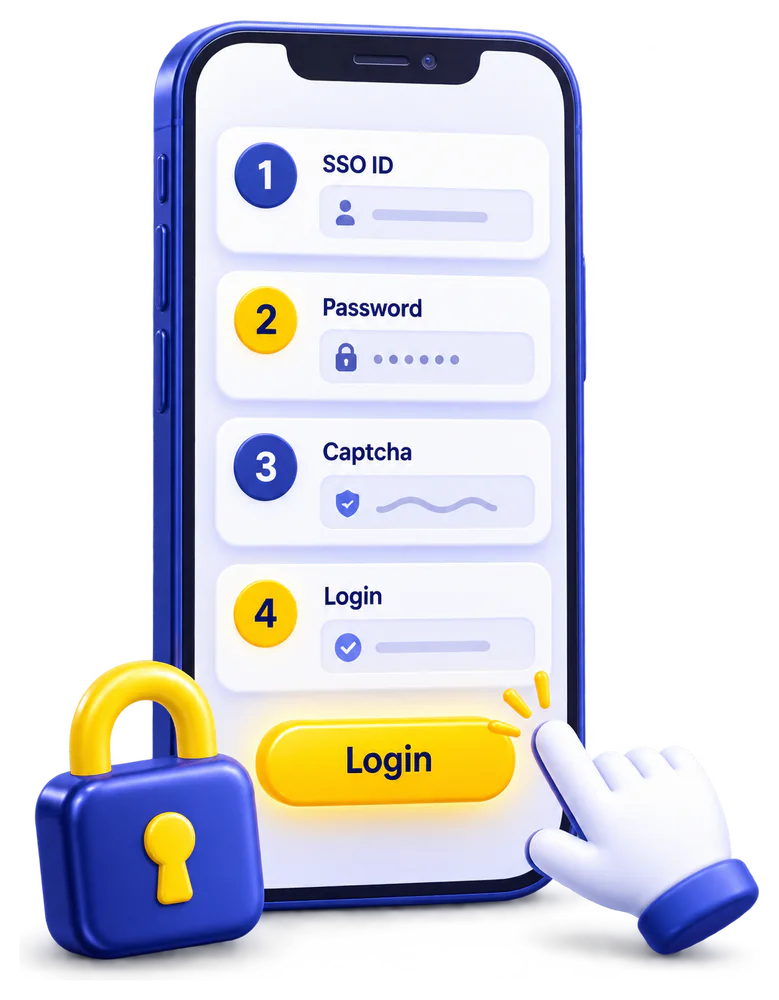
Dear users, if you are unsure how to log in to your Rajasthan SSO account, do not worry. With my experience helping users resolve SSO ID login problems, I know that even a small mistake while entering your details can prevent you from accessing the portal. That is why I have explained the exact login process below in simple steps. Follow each step carefully to reach the official SSO portal, sign in to your account, and open the government service you need.
Step 1: Visit the Official SSO Portal
First, open the official Rajasthan SSO login page at https://sso.rajasthan.gov.in/signin. Always check the website address before entering your login details to make sure you are using the official portal.
Step 2: Enter Your SSO ID
On the login page, find the Digital Identity (SSOID/Username) field. Enter the SSO ID or username associated with your account. If you have forgotten your ID, use the recovery option available on the official page rather than creating another account.
Step 3: Enter Your Password
Type your SSO account password in the password field. Check that you have entered it correctly and watch for typing errors or accidental spaces. If you cannot remember your password, select the official password recovery option.
Step 4: Complete the Captcha
If a captcha appears on the login page, enter the characters exactly as shown. If the image is difficult to read, refresh it and try again with the new characters.
Step 5: Click the Login Button
After entering the required details, review them and click Login. If your credentials are accepted and any required verification is completed, the portal should take you to your SSO dashboard.
Step 6: Open Your Required Service
Once you reach the dashboard, look for the government application or service you want to use. Select the relevant application and follow its instructions. Some services may ask for additional details or verification before you can continue.
Still unable to log in? Do not keep guessing your password or create a duplicate SSO ID. Check the error message, use the official account recovery options where appropriate, and consult our SSO ID login troubleshooting section for the next steps.
Forgot SSO ID While Logging In?
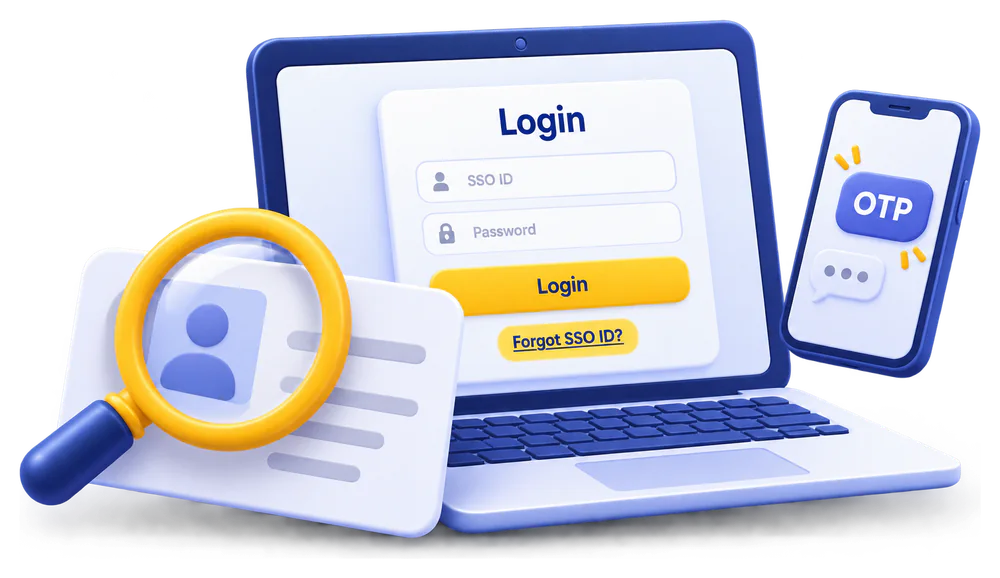
If you have forgotten your SSO ID and cannot log in to the Rajasthan SSO portal, do not worry. I know this can be stressful when you need to access a government service or complete an important application. Instead of creating another account, use the official recovery option to find your existing SSO ID. Follow these steps to get started.
- Step 1: Open the Official Portal. Visit https://sso.rajasthan.gov.in/ and go to the login page.
- Step 2: Select the Forgot SSO ID Option. Look for the Forgot SSOID or SSO ID recovery option displayed on the portal. Select it to begin the recovery process.
- Step 3: Choose an Available Recovery Method. Follow the options shown on the official page. Depending on the current process and your account type, you may be asked to provide identifying information or complete verification.
- Step 4: Enter the Required Details. Carefully enter the information requested by the portal. Check for typing errors before submitting the form.
- Step 5: Complete Verification. If the portal requests OTP or another verification step, follow the instructions shown on the screen. Use only the official website for this process.
- Step 6: Retrieve Your SSO ID. Once verification is successful, follow the portal’s instructions to view or recover your SSO ID.
What to do if you Forgot SSO ID Password?
A forgotten password can become a real headache when you need to check an application, access a government service, or finish an important task through Rajasthan SSO. The good news is that you usually do not need to create another account just because you cannot remember your password. Start with the official password recovery option and follow these steps.
- Step 1: Open the Official SSO Portal. Visit https://sso.rajasthan.gov.in/ and navigate to the login page.
- Step 2: Choose “Forgot Password”. Find the password recovery option on the login page and select it to begin the process.
- Step 3: Enter Your SSO ID. Provide your SSO ID and any other details requested by the recovery page. Check your entries carefully before proceeding.
- Step 4: Complete the Required Verification. Follow the verification instructions displayed on the portal. Depending on the available recovery method, you may be asked to complete an OTP check or another security step.
- Step 5: Create a New Password. After successful verification, follow the on-screen instructions to set a new password. Choose one that is difficult to guess and avoid reusing a password from another account.
- Step 6: Try Logging In Again. Return to the official login page, enter your SSO ID and new password, complete any captcha or additional verification shown, and select Login.
My Personal Tips for SSO ID Login Security
Protecting your Rajasthan SSO ID is not just about choosing a strong password. Since one account can provide access to different government services, a small security mistake can create unnecessary trouble. Based on my experience helping users with SSO login and account recovery, I recommend following these practical precautions whenever you access your account.

Use the Official Portal
Always access your account through https://sso.rajasthan.gov.in/. Before entering your credentials, check the complete website address carefully because fake websites can imitate the appearance of government portals.
Create Strong Passwords
Choose a password that is difficult to guess and different from those used for your email, banking, or social media accounts. Avoid personal details such as your birth date, name, or mobile number.
Never Share Login Credentials
Keep your SSO ID password and verification codes private, even when someone claims to be a support agent. Anyone requesting your OTP or password through a call, message, or email should be treated with caution.
Avoid Public Computers
Logging in through a cybercafe or shared computer can expose your account if credentials or browsing data are saved. Use your personal device whenever possible, and never allow a public browser to remember your password.
Verify Website Security
Check that the address belongs to the official sso.rajasthan.gov.in domain and uses HTTPS before signing in. Remember that a padlock icon alone does not guarantee legitimacy, so always verify the full domain name.
Secure Your Mobile Device
Use a screen lock and keep your phone’s operating system and browser updated. If you access SSO on a device shared with family members or others, avoid leaving your account open and accessible.
Avoid Suspicious Login Links
Do not enter your credentials through unexpected links claiming that your SSO ID will be blocked or requires urgent verification. Open the official portal directly in your browser instead of trusting messages from unknown sources.
Log Out After Use
Always select the portal’s logout option after completing your work, especially when using a shared device. Simply closing the browser tab may not immediately end an active session.
Protect Recovery Details
Keep access to the verification method required by the official password recovery process. If your registered mobile number or other recovery details change, follow the portal’s official instructions to update them where supported.
Respond to Unusual Activity
If you notice unfamiliar account changes or receive verification requests you did not initiate, do not approve them. Access the official portal independently, change your password if you suspect it has been compromised, and use the available official support options.
My advice: Treat your SSO ID like any other important digital account. A verified login page, a unique password, and careful handling of verification codes can help prevent many common security problems.
SSO ID Login Real Problems and Solutions
I know Even when you enter your SSO ID and password carefully, the Rajasthan SSO portal may sometimes refuse access or fail to load properly. From my experience troubleshooting login problems, the first step is to identify whether the issue comes from incorrect credentials, browser settings, internet connectivity, verification, or the account itself. Use the table below to find the problem that best matches what you see and try the relevant fix.
Incorrect SSO ID or password
Check for typing mistakes, extra spaces, and incorrect uppercase or lowercase letters in your password. Make sure you are using the correct SSO ID rather than assuming your mobile number or Jan Aadhaar number is your username.
Forgotten SSO ID
Use the official portal’s available Forgot SSOID or account recovery option. Follow the verification steps shown instead of creating another account immediately.
Forgotten password
Select Forgot Password on the official login page and follow the available recovery process. Once reset, use the new password rather than an old saved one.
Captcha is not accepted
Enter the characters exactly as displayed and refresh the captcha if it is difficult to read. If the error continues, reload the page and check whether your browser is displaying the latest captcha.
OTP not received
Confirm that you are checking the registered mobile number or the contact method requested by the portal. Check network reception and wait briefly before requesting another OTP; repeated requests can cause confusion about which code is current.
OTP expired or invalid
Request a fresh OTP through the official page and use the newest code within its validity period. Avoid entering an earlier code after requesting another one.
Login button does not respond
Check that all required fields are completed and that the page has finished loading. Refresh the official login page, then try again; if necessary, test an updated browser.
SSO login page keeps loading
Open the official portal in a new tab and check whether other websites load normally. If your connection works elsewhere, try a private browsing window or another updated browser to identify a local browser issue.
Portal shows a server error
A server-side problem may be temporary and cannot always be fixed from your device. Wait a while before retrying, and check official notices or support options if the error continues.
Session expired during login
Return to the official login page and sign in again. Avoid leaving the login screen idle for a long time, especially if you were completing verification or switching between pages.
Login works but dashboard does not open
Check whether the portal has finished loading and whether your browser blocks necessary scripts or cookies. Try refreshing once or using another updated browser; if only a particular service fails, the issue may be with that service rather than your login credentials.
Account appears locked or access is blocked
Stop repeated login attempts and read the exact message displayed. Follow any official unlock or recovery instructions, or contact the portal’s support team if no self-service option is provided.
Browser keeps filling an old password
Remove the outdated saved password from your browser’s password manager or manually enter the current password. Check that the correct SSO ID is paired with it.
Login fails only on mobile
Switch between Wi-Fi and mobile data to check connectivity, then try an updated browser. If the page layout is broken, open the portal in a standard browser tab rather than an embedded browser inside another app.
Login fails on one browser only
Open the portal in a private window or try another updated browser. If this works, an extension, cached data, or a browser setting may be interfering with the login page.
Login fails on multiple devices
Check the exact error message and confirm that your credentials are correct. If the same problem occurs across different devices and networks, a portal-side issue or account restriction may be responsible.
Jan Aadhaar details are not accepted
Check that you selected the appropriate registration or login option and entered the requested details correctly. Jan Aadhaar is not automatically interchangeable with your SSO ID in the login field; follow the specific option displayed by the portal.
Required government service is missing
First confirm that you have logged in to the intended account type and opened the relevant dashboard. Service availability may depend on your account category, eligibility, or departmental access; contact the relevant service’s official support if necessary.
Login page displays incorrectly
Update your browser, enable JavaScript and cookies where required, and temporarily test in a private window. If the layout remains broken across browsers, retry later in case the portal is experiencing a technical issue.
Repeated login attempts fail
Stop guessing passwords because repeated attempts may trigger additional security checks or temporary restrictions. Use the official password recovery process and retry with the verified credentials.
Concern about an unfamiliar login
Do not approve unexpected verification requests. Access the official portal independently, change your password if you suspect it has been exposed, and use official support if you cannot secure the account.
FAQs

Conclusion
Getting stuck on a login page can be frustrating, especially when you need to access an important Rajasthan government service. With the correct login details, a secure browser, and the right troubleshooting steps, you can resolve many common SSO ID login problems without unnecessary delays. I have shared these instructions to help you understand the login process, recover forgotten credentials, and identify technical errors more confidently. Always use the official Rajasthan. A few careful steps can make your next login easier and more secure.